Recommended tools
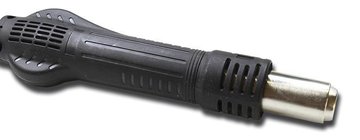
Heat gun
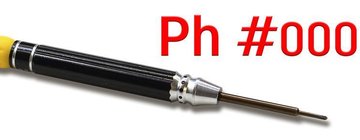
Screwdriver Phillips #000
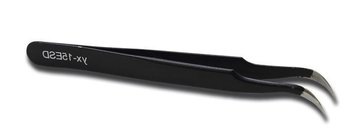
Tweezers
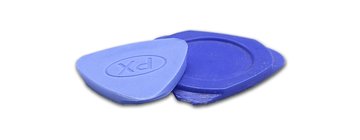
Non-metallic tool
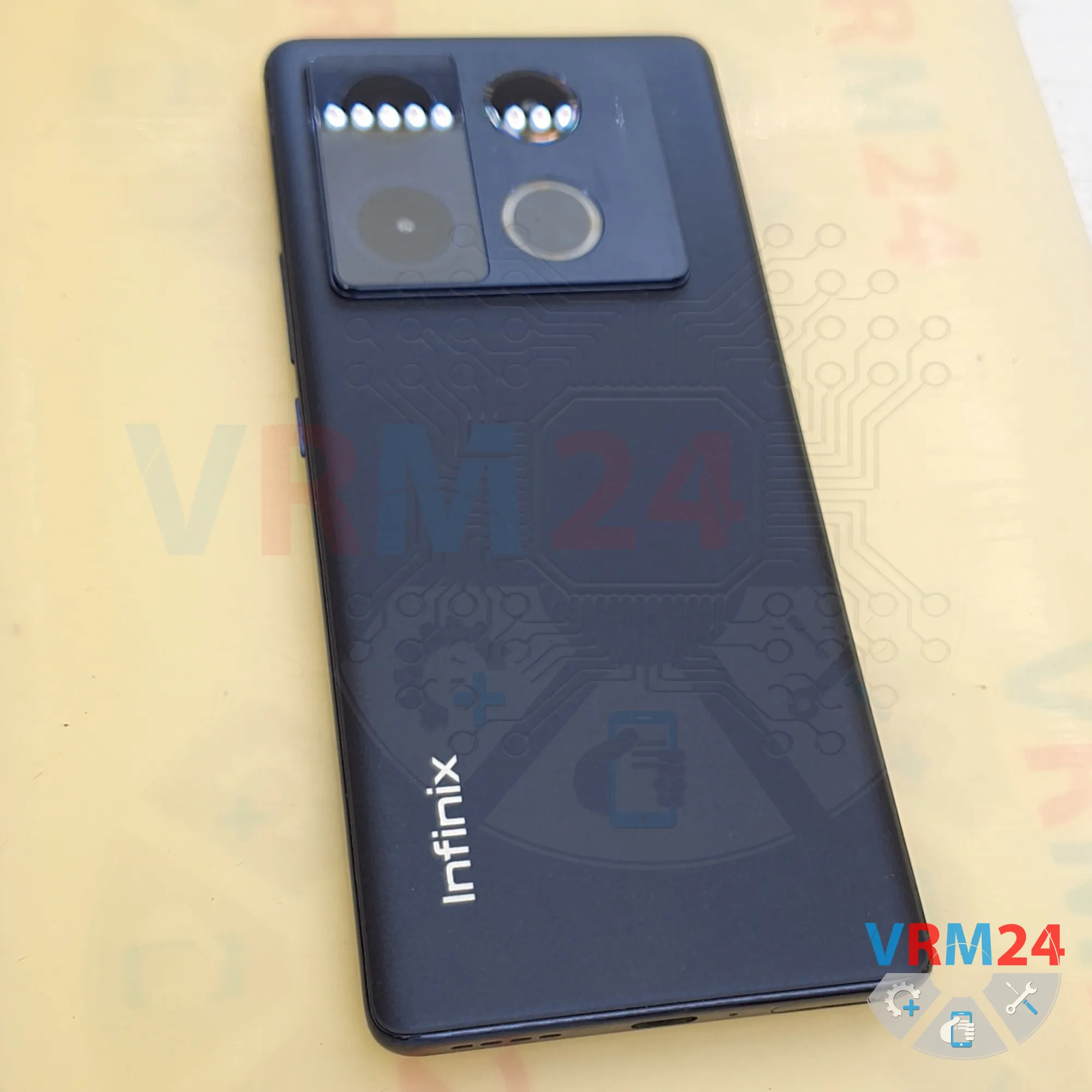
Disassembly/Repair of the mobile device Infinix Note 40 Pro with each step description and the required set of tools.
10
Views
0
Likes
—
Share
0
Questions

Step 1.
Before disassembling!
⚠️ Before disassembling, do not forget to turn your phone off.
Step 2.
Remove the tray
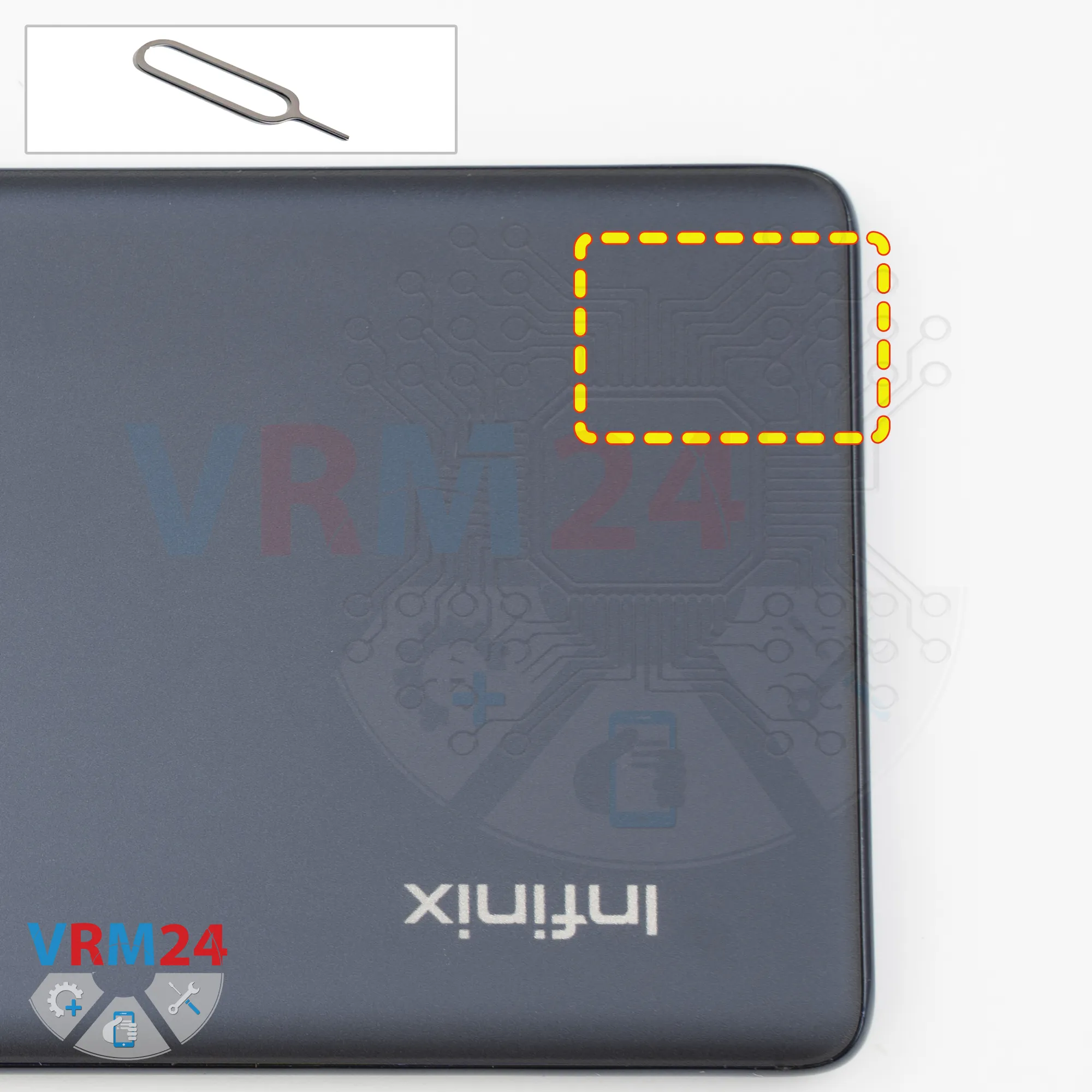
First, as usual, we need to remove the SIM card tray.
To do this, we use a SIM eject tool. Insert it into the small hole and push to eject the tray. If the tray doesn't come out easily, we can use tweezers to help remove it.
Step 3.
Open the back cover
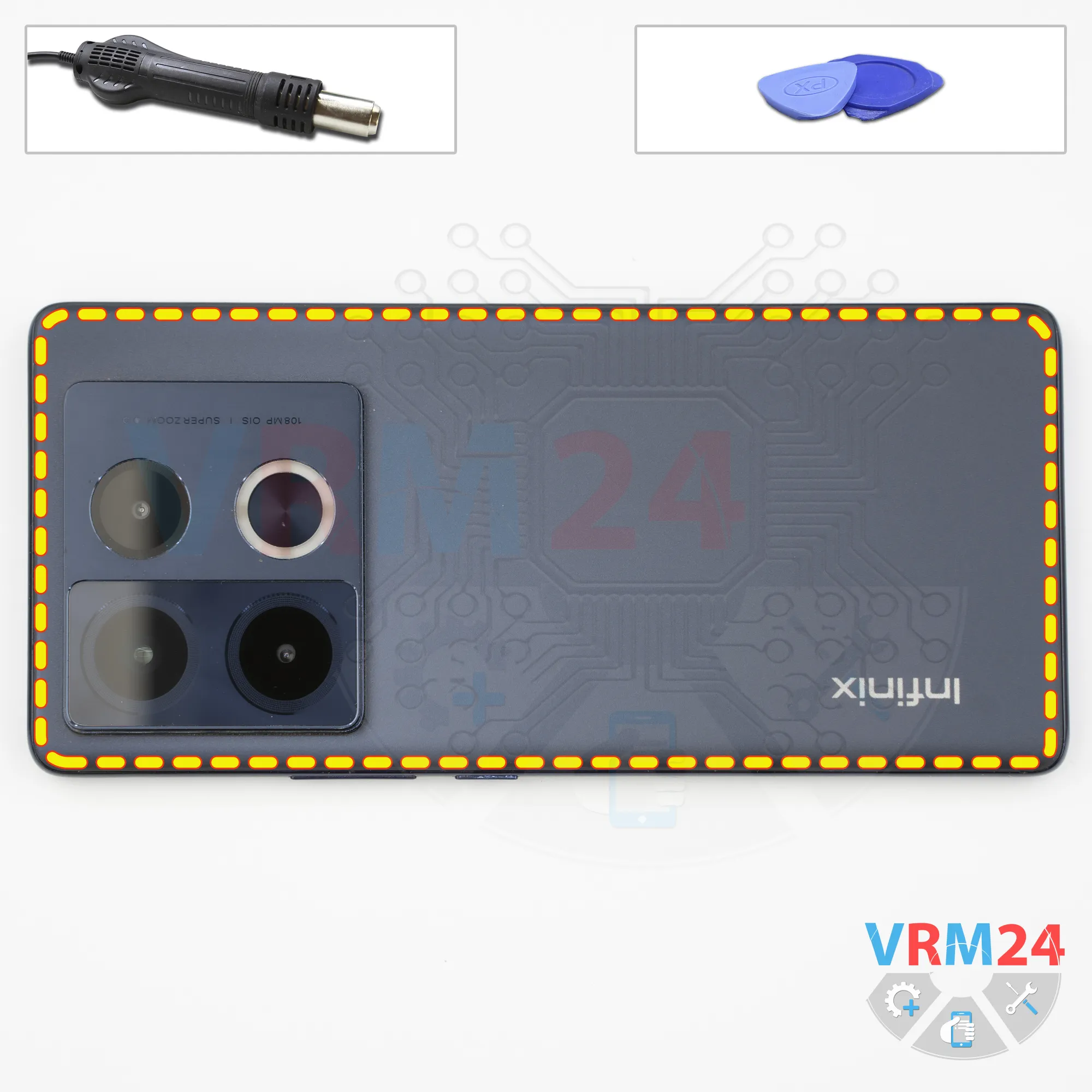
Next, we need to heat the surface of the back cover to approximately 70°C (160°F). We're using a heating mat for this, but you can also use a hair dryer.
After about 10 minutes, we can start removing the back cover. For this, we use a thin plastic film. Carefully insert it into the gap between the back cover and the middle frame, then slowly slide it along the edge to cut through the adhesive.
As always, be careful not to insert the film or any other tool too deeply under the back cover, as you could accidentally damage internal components, including flex cables, other cables, cameras, camera lenses, and so on.
Be especially careful in areas where flex cables may be located.
Around the camera area, the back cover has a raised section that's more rigid. Here, we can use a tool to gently push the cover upward.
Make sure you don't press the tool against the middle frame or the circuit board to avoid accidentally damaging anything.
Step 4.
Unscrew the screws
It's also a good idea to protect the camera lenses. For this, we use a special protective film.
Please note that we apply the film to the rims around the lenses, not directly to the lenses themselves.
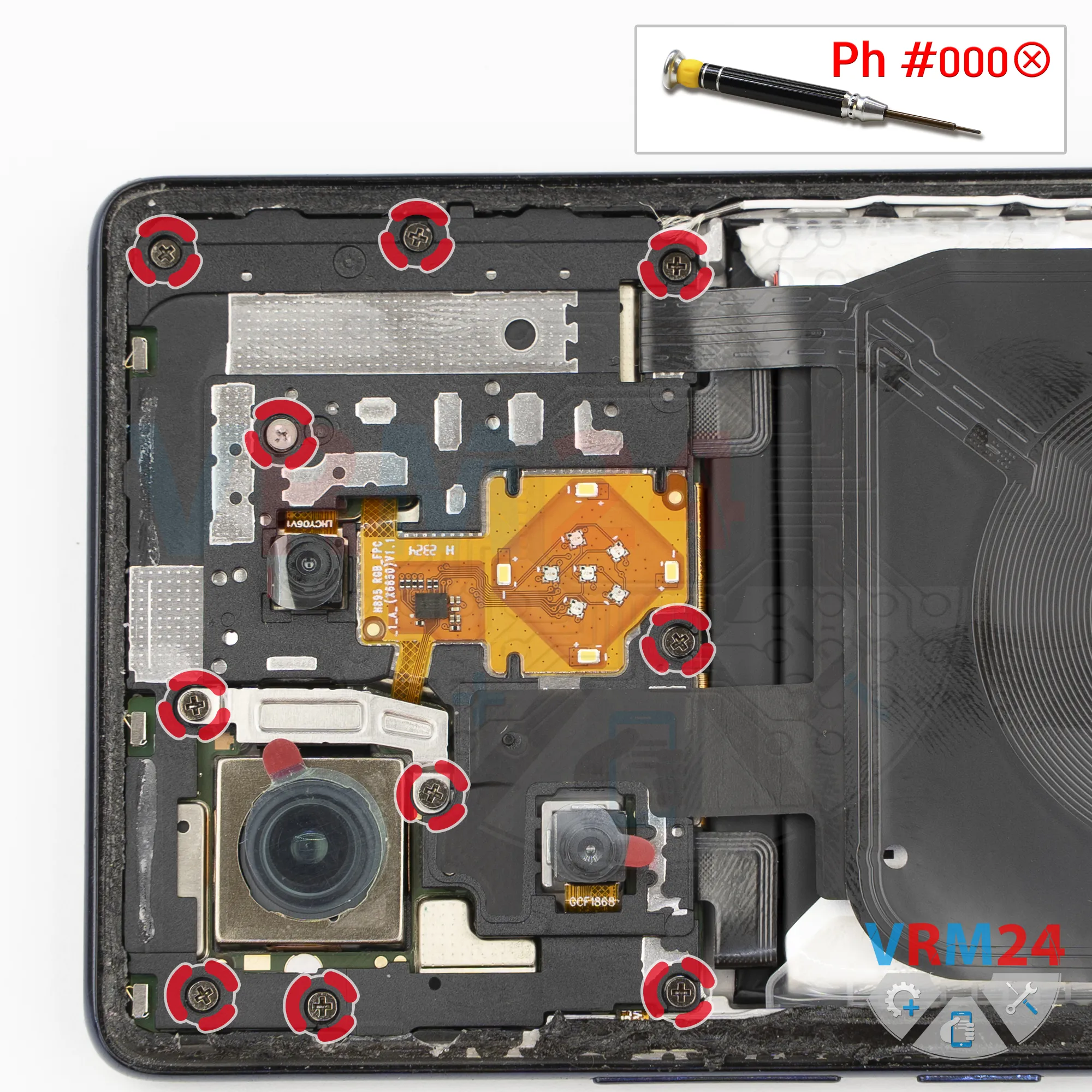
Now we can start removing the screws. We're using a 1.5 mm Phillips screwdriver, or a Phillips #000.
Carefully unscrew each screw and place it on a designated work surface.
It looks like all the screws are the same, but just to be safe, it's better to keep them arranged in a specific order so we can put everything back correctly during reassembly.
Step 5.
Remove the bracket
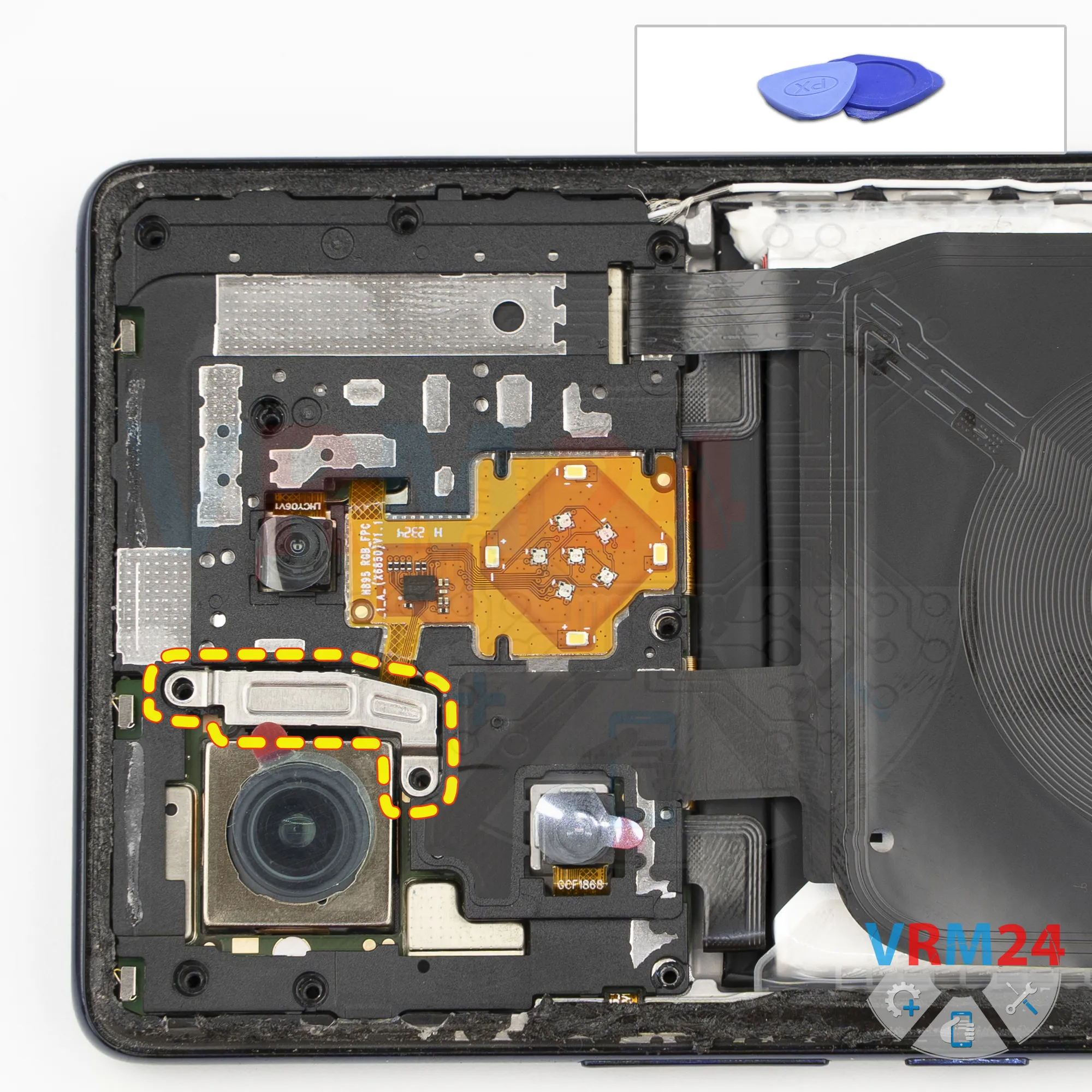
At this point, we can remove the bracket that holds the connectors in place.
We disconnect the rear camera connector and then disconnect the flash flex cable connector.
Step 6.
Open the cover
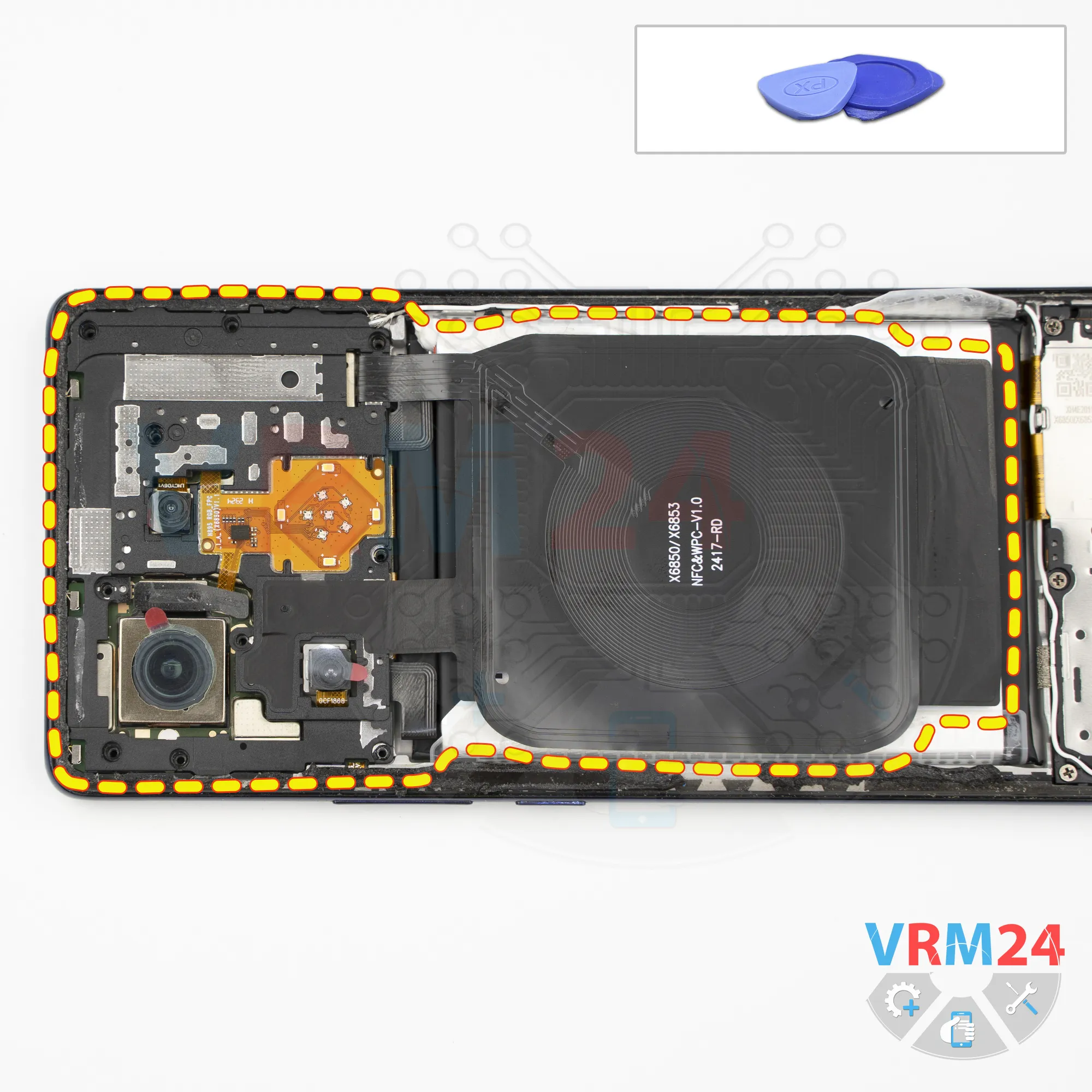
Now we need to remove the upper cover. We also need to check the wireless charging assembly. Carefully peel back the protective layer and proceed with removing the cover.
Gently pry it up at the appropriate point. Don't use excessive force. Instead, carefully rock it back and forth until the cover comes free.
As you can see, the cover has contact pads and conductive traces.
Step 7.
Disconnect the battery connector
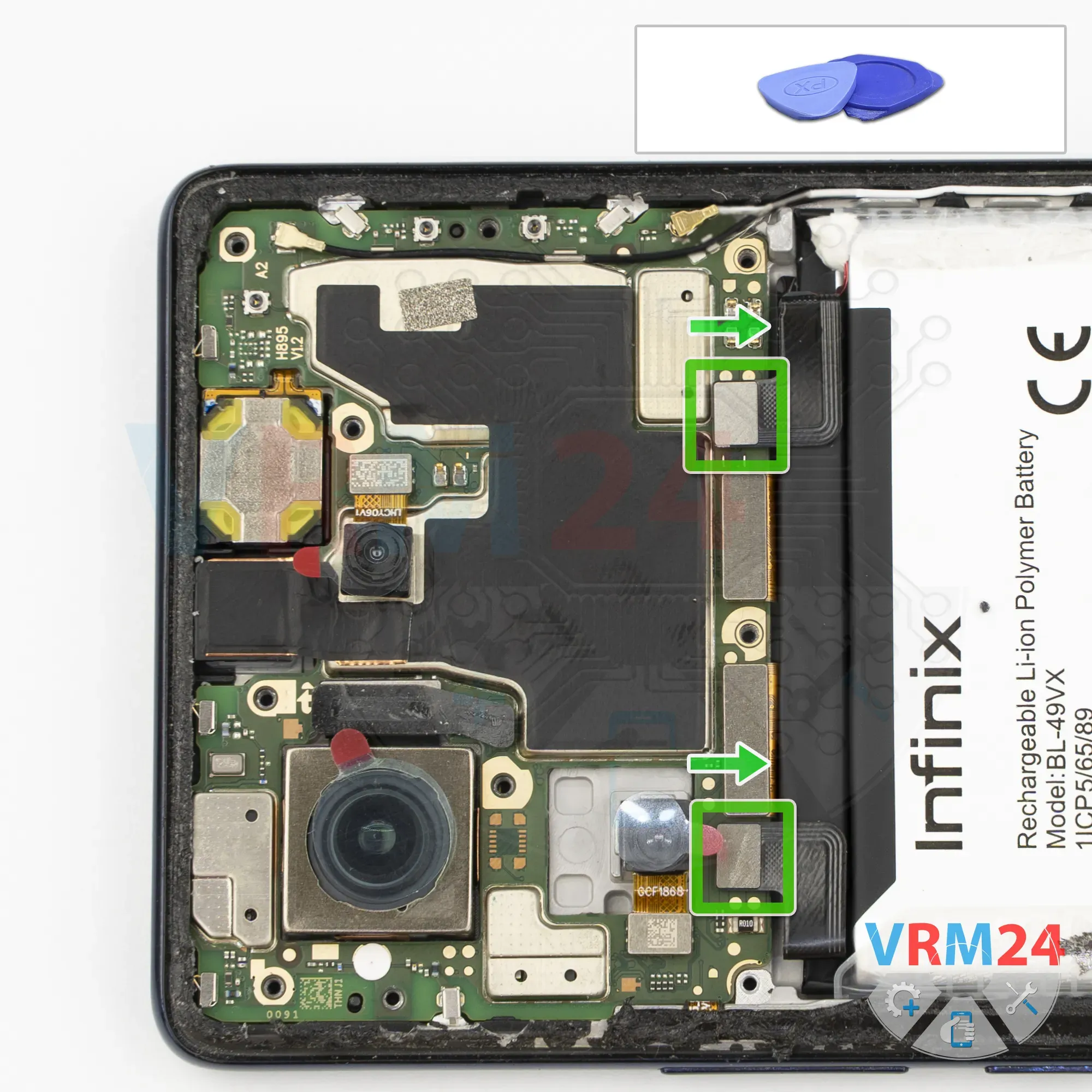
Next, using a non-metallic tool, we disconnect both battery connectors.
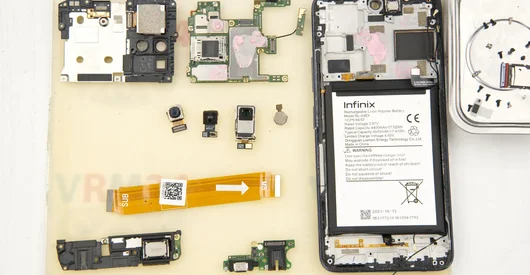
ℹ️ The Infinix Note 40 Pro uses a BL-49VX rechargeable battery with a capacity of 5000 mAh.
Step 8.
Unscrew the screws
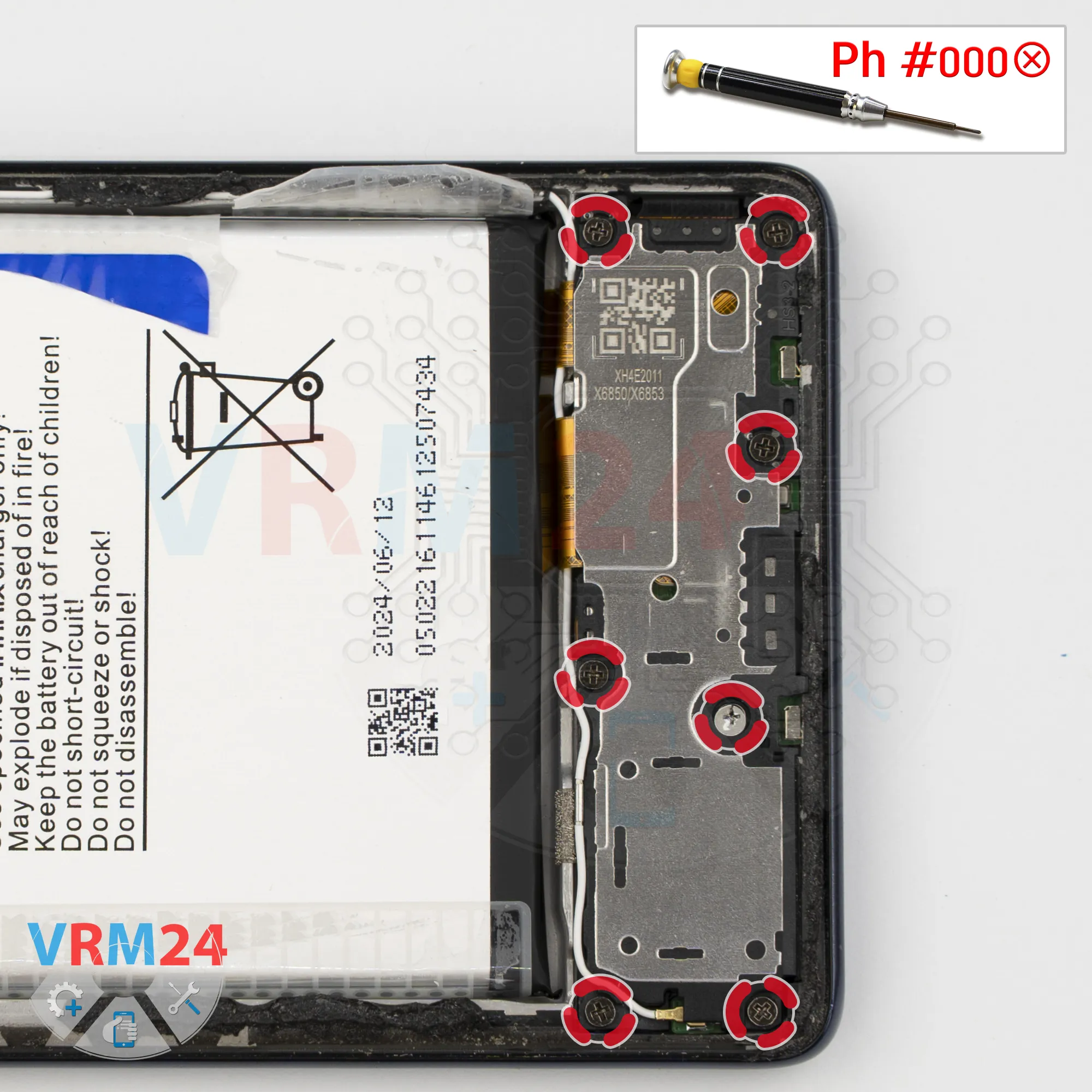
Now let's move on to the bottom section.
As usual, there are several screws in the lower section. We remove them and keep them separate from the screws we took out earlier.
If any screws get stuck, we can use tweezers to help remove them.
Step 9.
Remove the loudspeaker
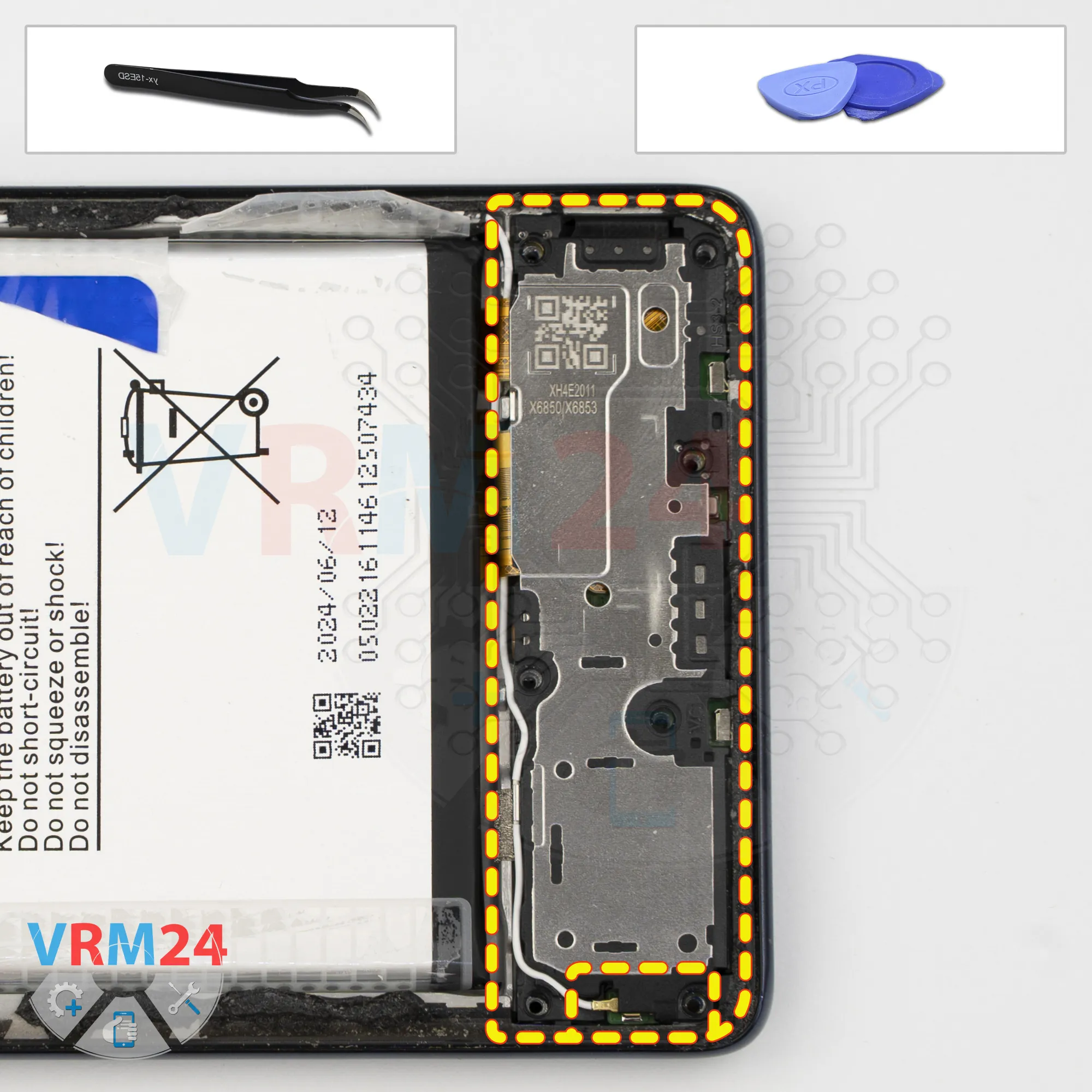
Next, we remove the loudspeaker assembly cover. Carefully lift it and gently rock it back and forth to release it.
Notice that a coaxial cable runs to the antenna board, which is located inside the loudspeaker assembly cover.
Carefully flip the cover over and check whether we need to disconnect the coaxial cable or the antenna board.
Step 10.
Disconnect the connectors
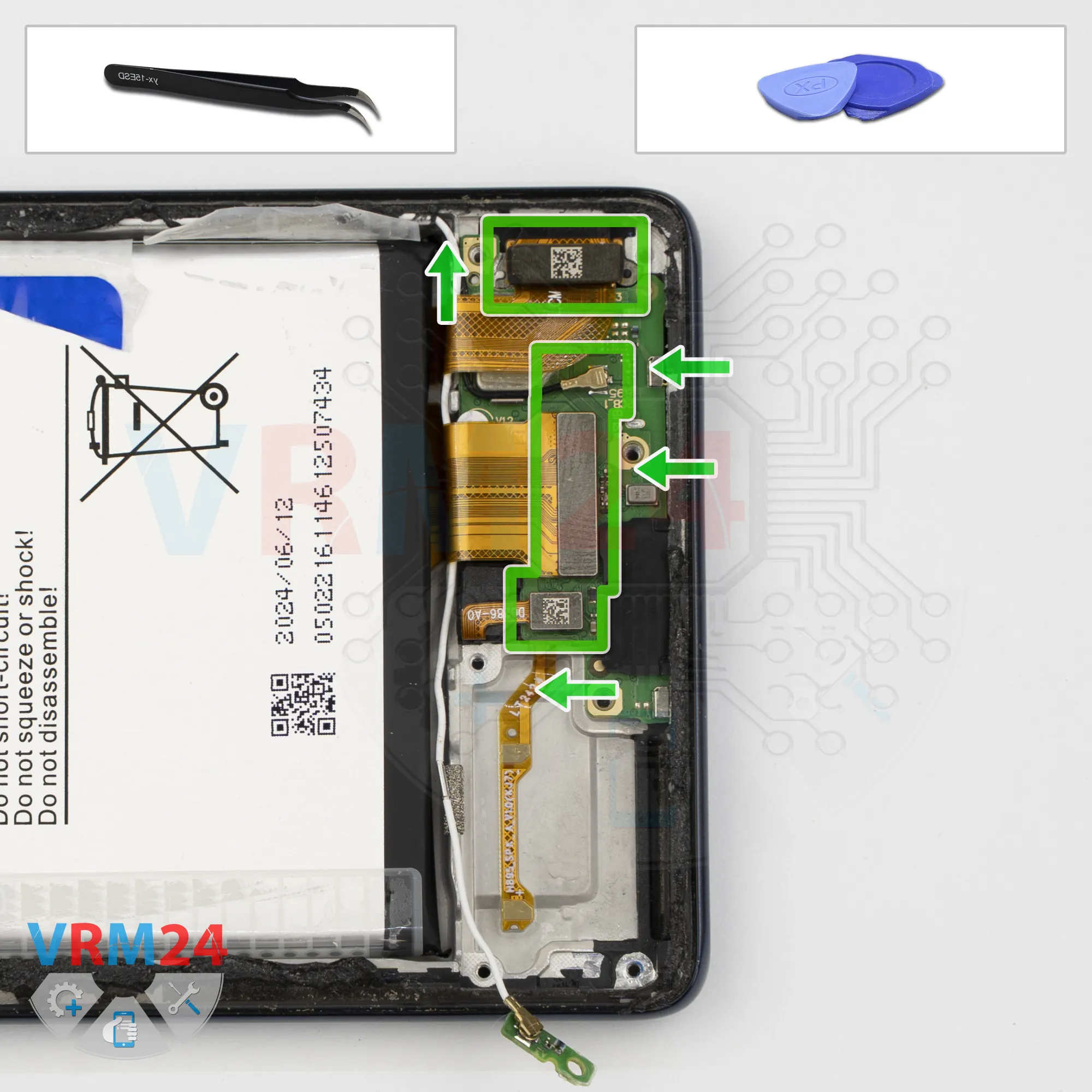
After that, we disconnect the interconnect flex cable connector, the fingerprint sensor connector, second coaxial cable connector and the display flex cable connector.
We also need to remove the contact pad assembly with its attached flex cable.
Carefully pry it up by the metal base and lift it.
Don't use excessive force, and don't press directly on the flex cable, as this could damage the conductive traces.
Step 11.
Remove the sub-board
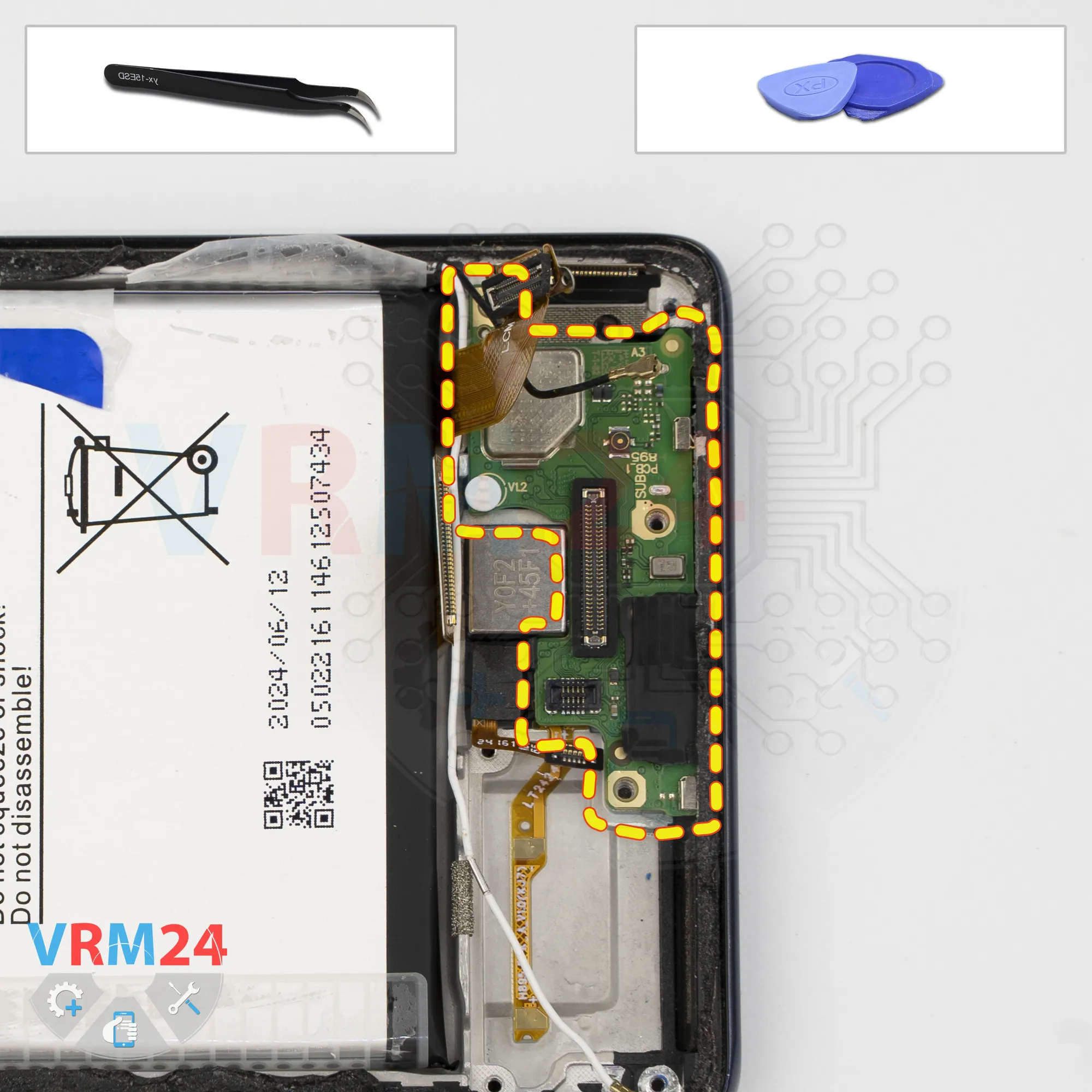
Next, we remove the sub-board. Gently pry it up and carefully take it out.
The daughterboard contains the charging port, the card connector, and a microphone on the back.
Step 12.
Remove the small board
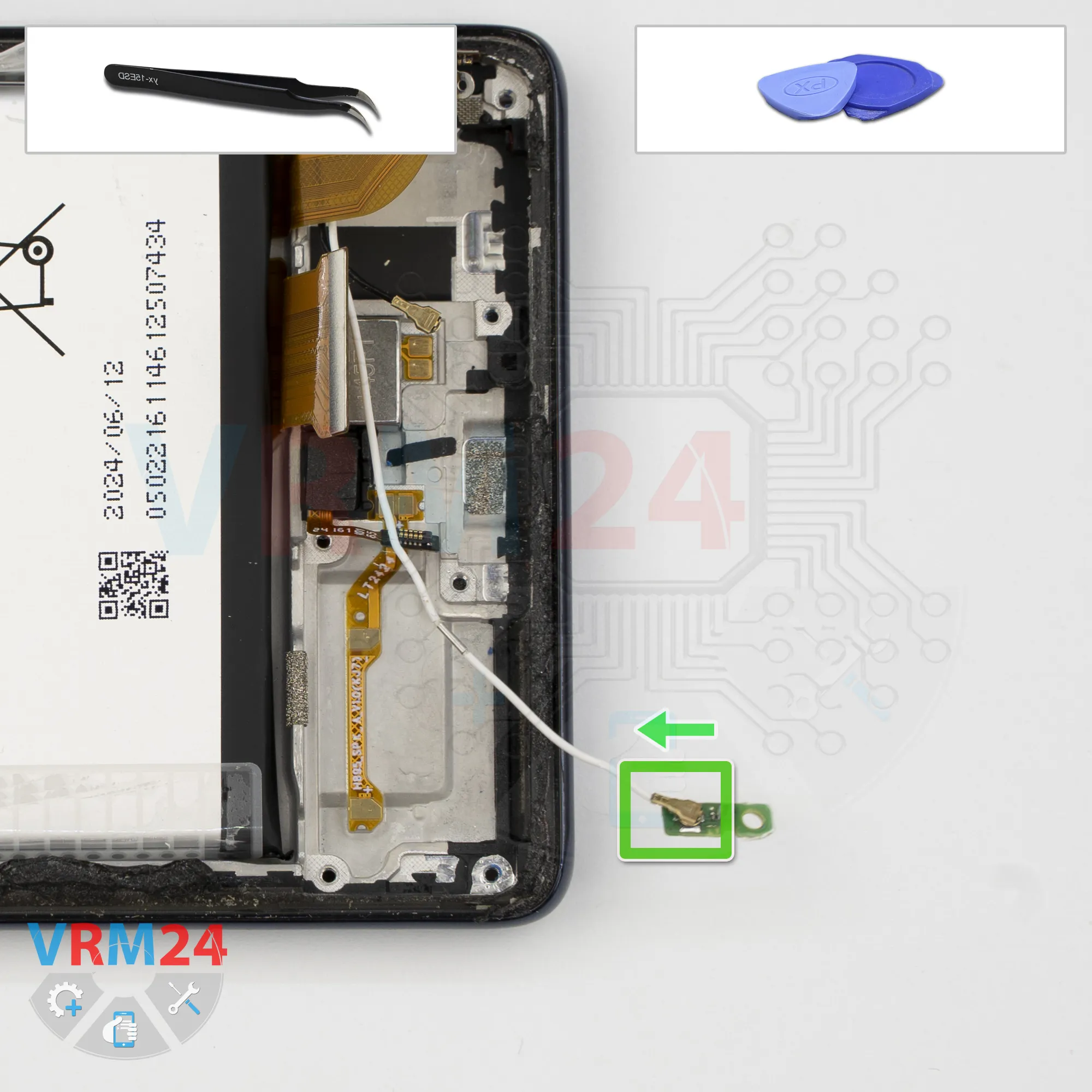
Next, disconnect the coaxial cable connector and remove the small antenna board.
Step 13.
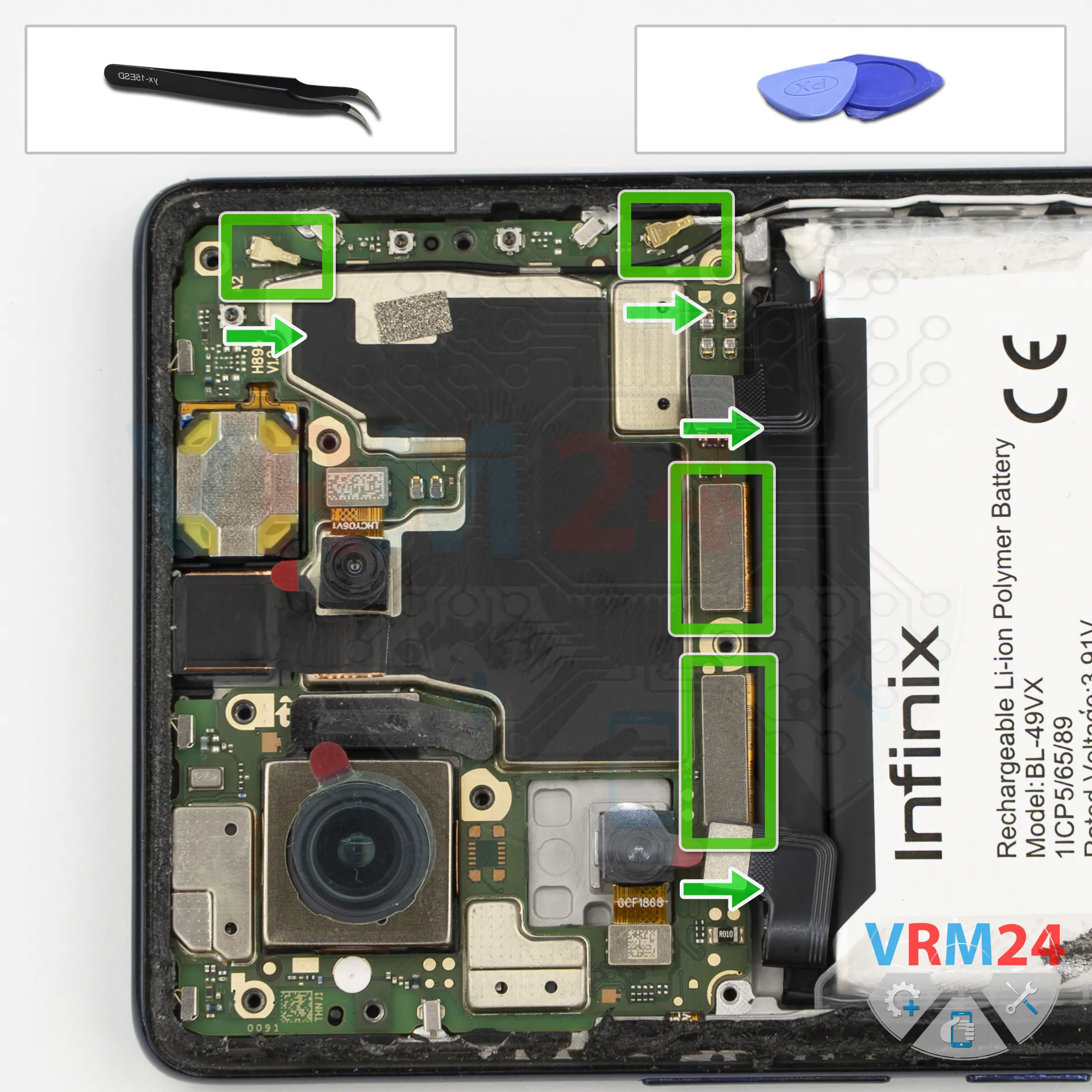
Disconnect the connectors
After that, we can start disconnecting the remaining connectors.
First, disconnect the coaxial cable connectors, then carefully release the cables from the retaining clips on the motherboard.
Move the cables out of the way.
Next, disconnect the display flex cable connector and the interconnect flex cable connector.
Check that nothing else is still connected.
Step 14.
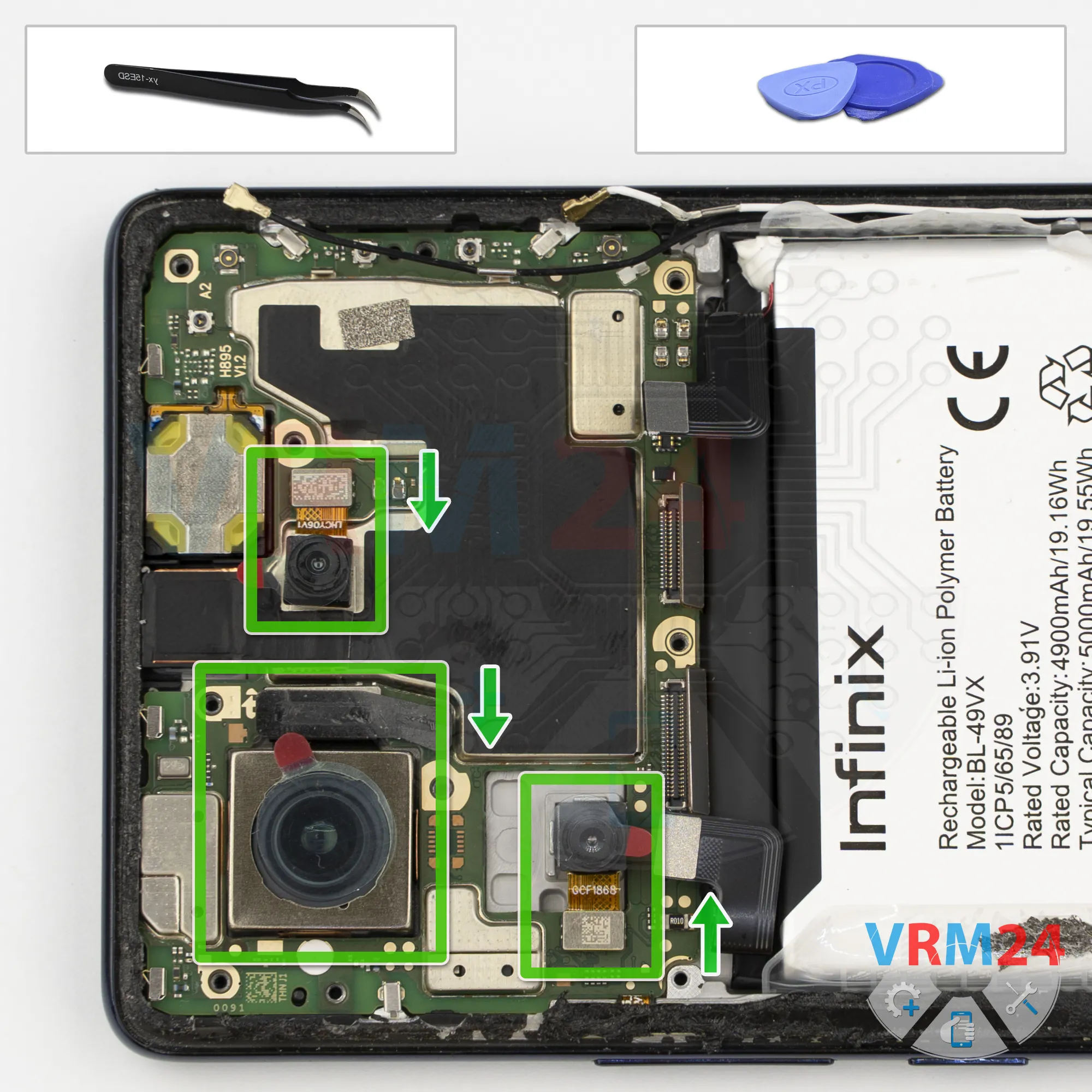
Remove the cameras
Next, let's move on to the rear cameras.
Carefully pry up the edge of the cameras. On this model, the rear cameras are attached with adhesive to the shields on the motherboard and to the display frame.
We carefully detach the first camera and set it aside.
The large rear camera is firmly glued to the display frame, so we need to carefully separate the adhesive here as well. Once it's free, we set it aside.
There's also a smaller camera that we need to carefully detach from the adhesive.
Step 15.
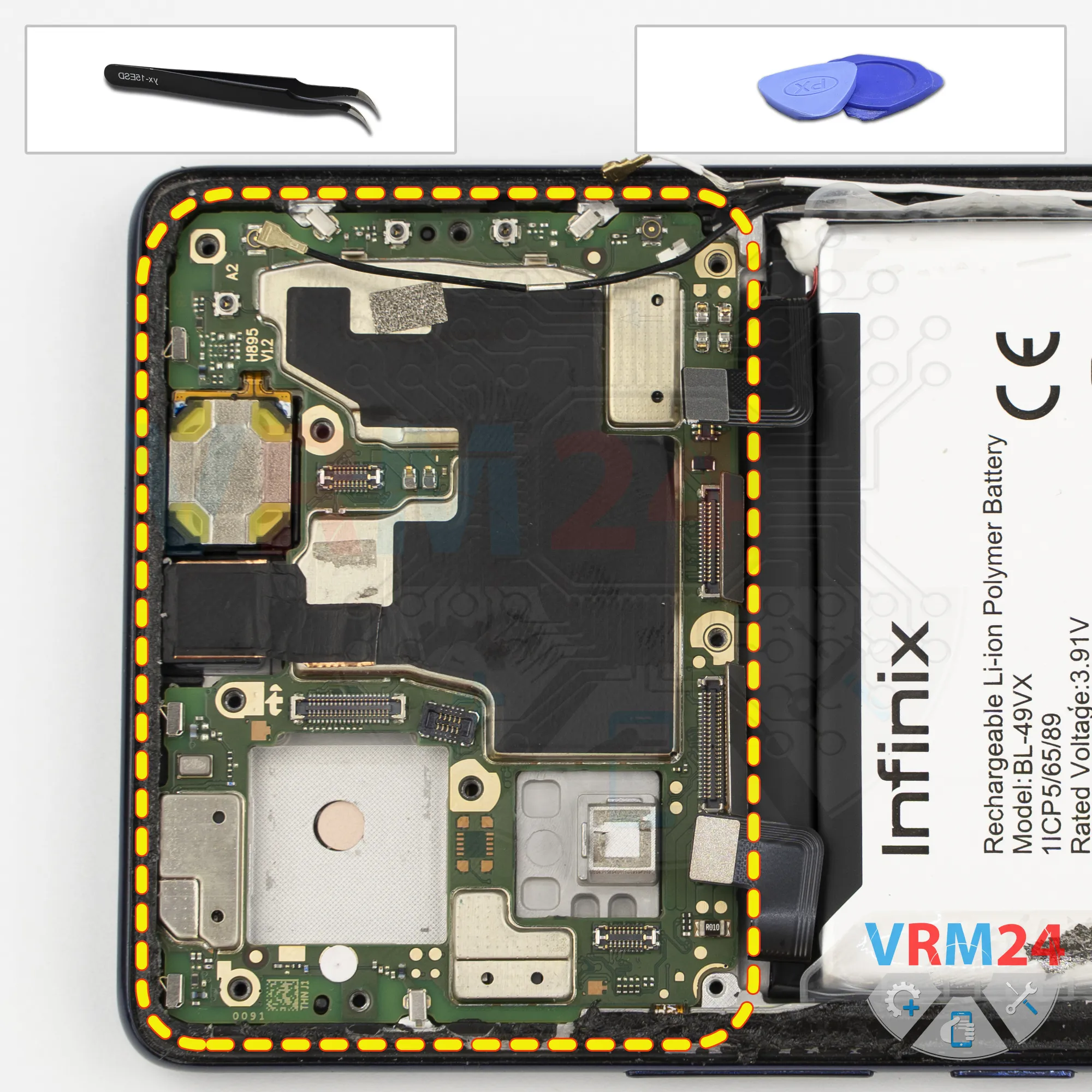
Remove the motherboard
As we can see, the front-facing camera is glued to the display frame, and its connector is attached to the back of the motherboard. It's better to disconnect it later.
Now, carefully pry up the motherboard from the edge at a suitable point and try to lift it out.
Keep in mind that the motherboard may also be held in place by thermal paste on the back.
Find a suitable point where you can gently pry it up, then carefully lift and rock the board back and forth.
The glued-down front-facing camera is also preventing the motherboard from coming free.
Carefully lift the board a little more, and now we can gently remove the motherboard.
Step 16.
Remove the front camera
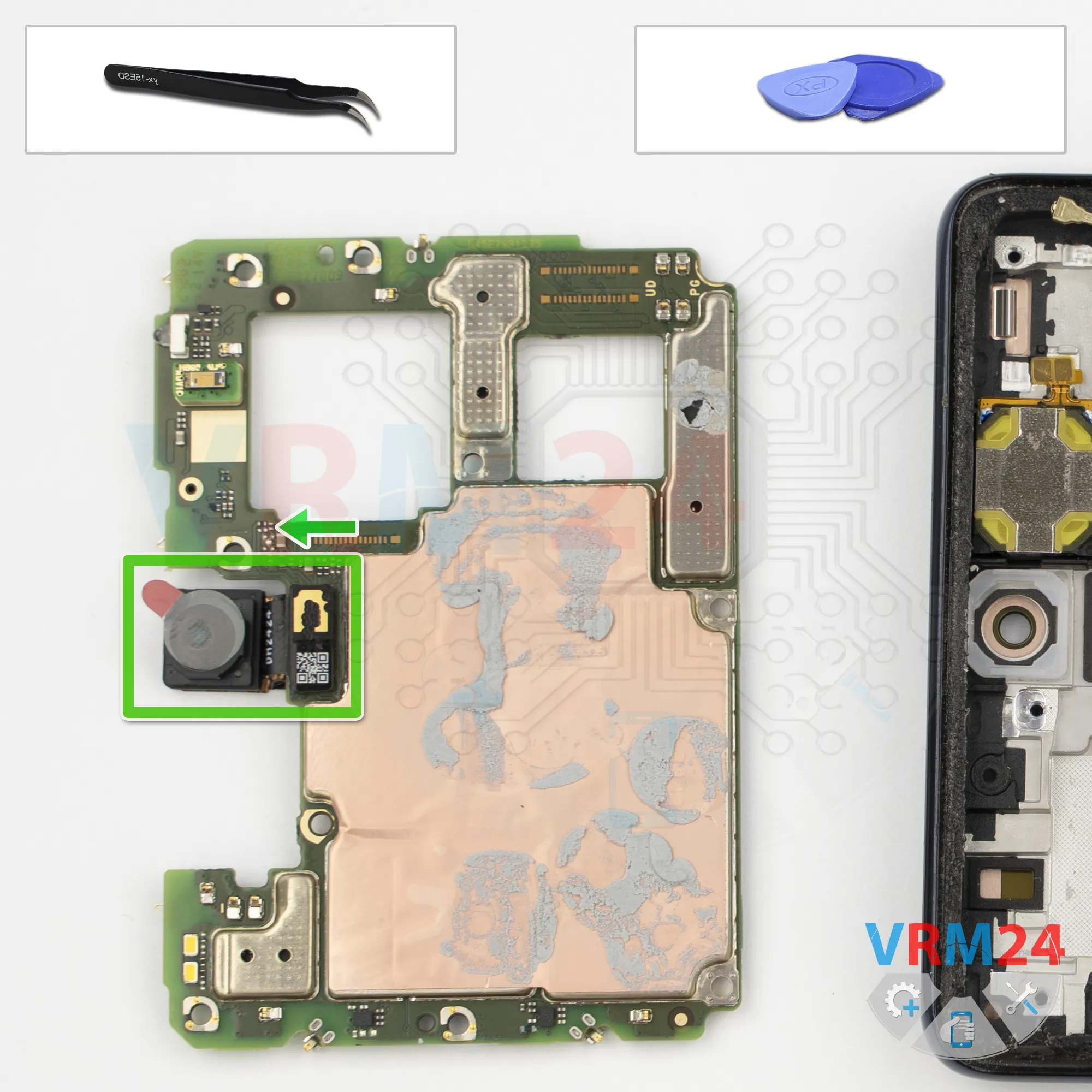
Next, we flip the motherboard over.
We disconnect the connector and now we need to peel back the copper heat-dissipation foil.
It's best to preserve this foil whenever possible.
Step 17.
Remove the battery
Finally, let's move on to removing the battery.
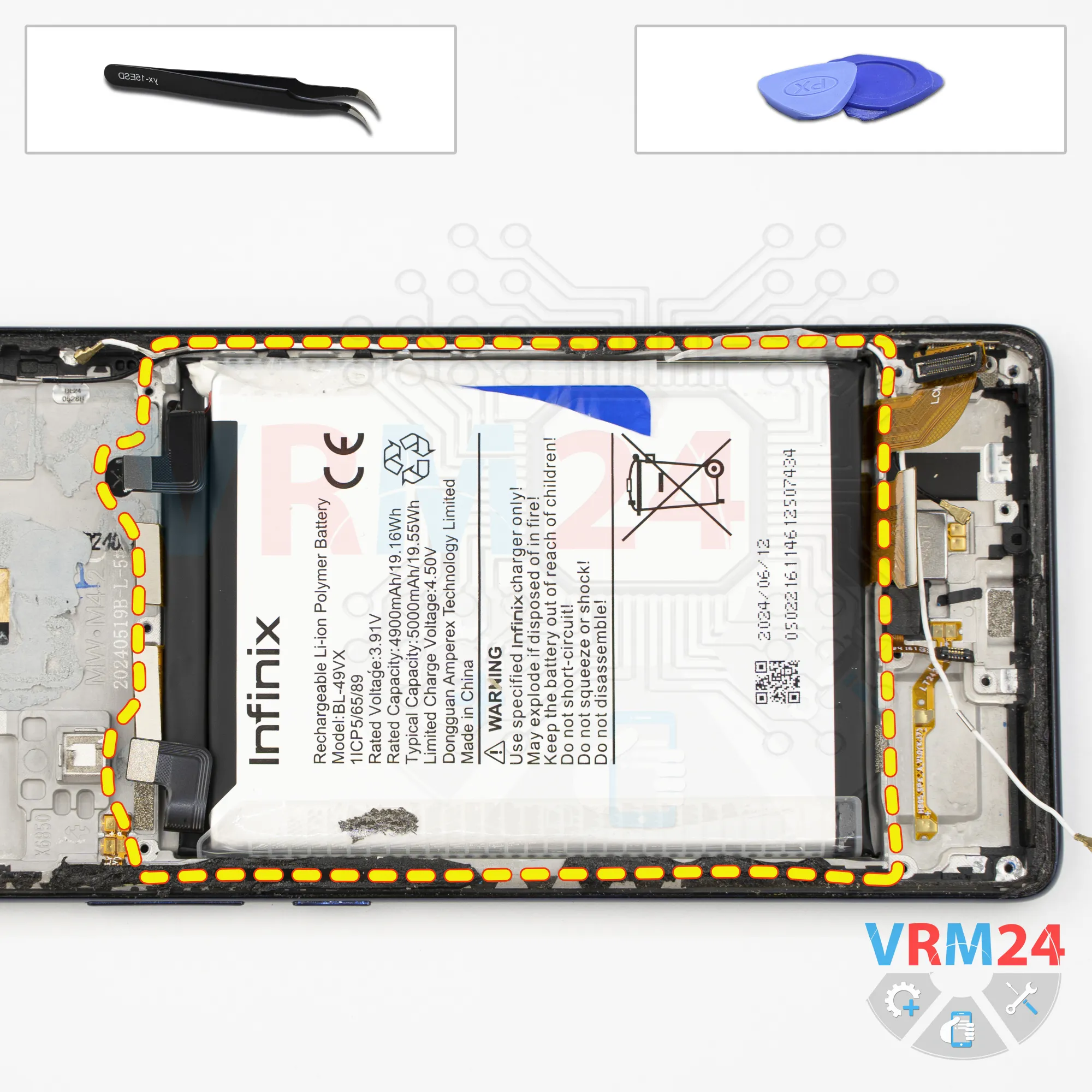
The battery has a blue pull tab and a transparent protective film around the edges. We need to peel back the transparent film and then pull upward on the blue tab.
The battery is glued down very firmly, which makes it extremely difficult to remove.
Using a metal tool is strongly discouraged because you could accidentally damage the interconnect flex cables or puncture the battery casing.

If you have a question, ask us, and we will try to answer in as much detail as possible. If this article was helpful for you, please rate it.

10
Views
0
Likes
—
Share
0
Questions
Related Instructions
Related Reviews
Related Blog

Top instructions
Check our
Top Infinix instructions most liked by readers
New instructions
Check our
New Infinix brand instructions on vrm24.com